The app opens on a question and a text box. Not a canvas, not a template gallery pretending to be a canvas — a question:
What are we making?
Under it, one line of small print that is really the whole product: describe it, an agent on this machine designs it, files land in a folder you own.
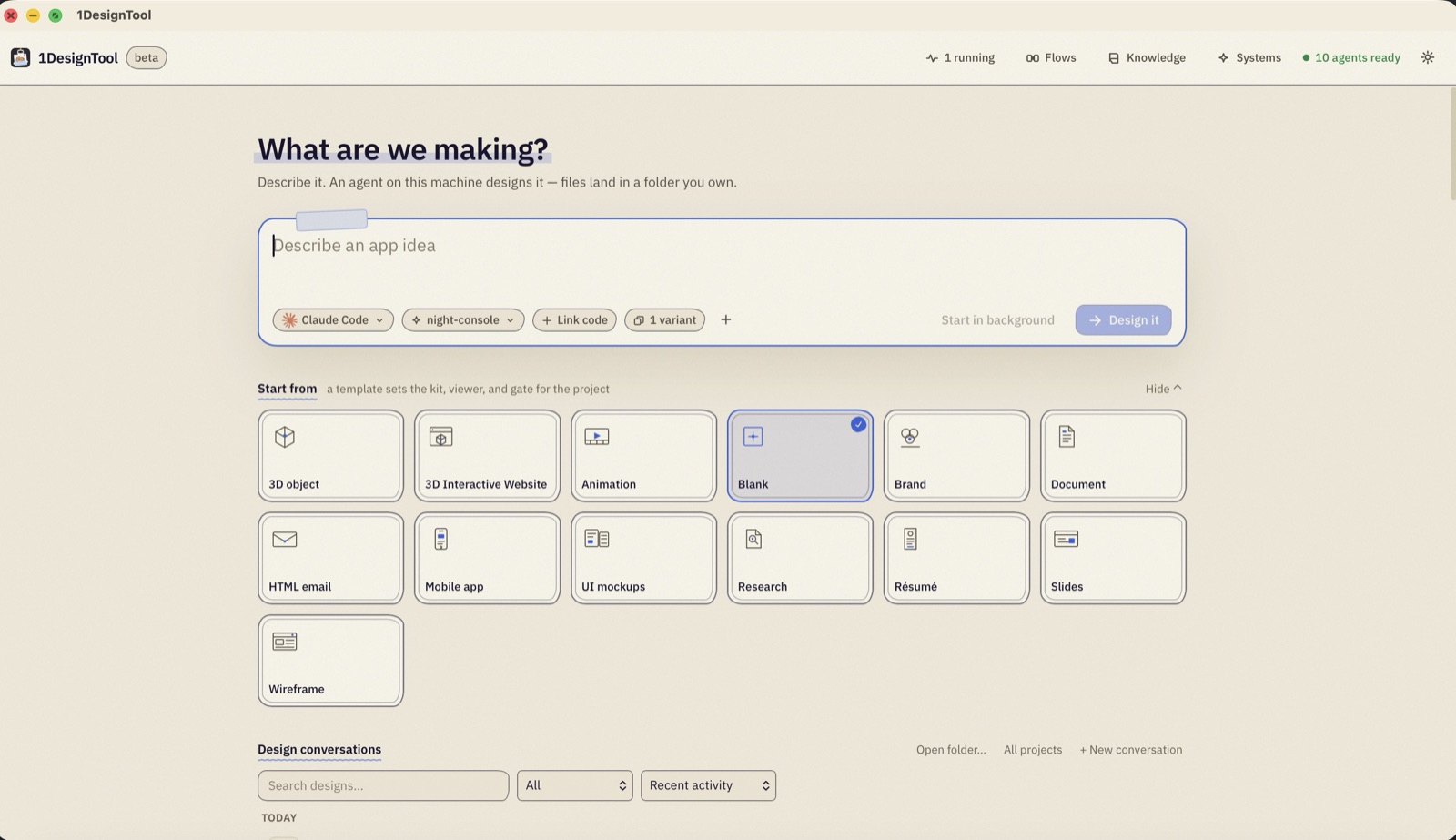
This post follows a single run from that box to the folder it leaves behind.
The brief is four small decisions
Most of the prompt box is a text field, and most of the time that is all you touch. The row underneath is where a run gets its shape:
- Which agent. 1DesignTool does not ship a model. It drives the coding CLIs you already have installed and pay for — Claude Code, Codex, Cursor Agent, Grok Build, OpenCode, Antigravity, Qwen Code, Kimi Code, Amp, Devin, Cline, Hermes Agent, Pi, Oh My Pi, Kiro CLI, Aider. The corner of the window keeps a count of how many answered when the app looked: 10 agents ready.
- Which effort. A named preset per agent — the run in the screenshot above is set to
night-console. Cheap and fast for a wireframe, slow and careful for a brand kit. - How many variants. One by default. Ask for four and you get four folders to choose between, which is also how the app learns what you like.
- What else it can see. Link code points the agent at a repository so the design matches the thing being built. Files and screenshots can be dropped straight in.
Then there is Start in background, which is the option that changes how you work. A run is a subprocess with a folder, not a chat you have to sit in front of. Start three, go read something.
Below the box sit sixteen templates — Blank, Mobile app, Slides, Document, Wireframe, Animation, UI mockups, Résumé, 3D object, Interactive website, Research, HTML email, Brand, Design system, Infographic, Social media. A template is not a starting file. It is starter files plus agent instructions, its own viewer, and the checks that make sense for that format. Picking "Document" and picking "3D object" put the agent in two different jobs, with two different definitions of done.
You watch it work, because a black box cannot be corrected
The run opens into two panes: the conversation on the left, the result on the right.
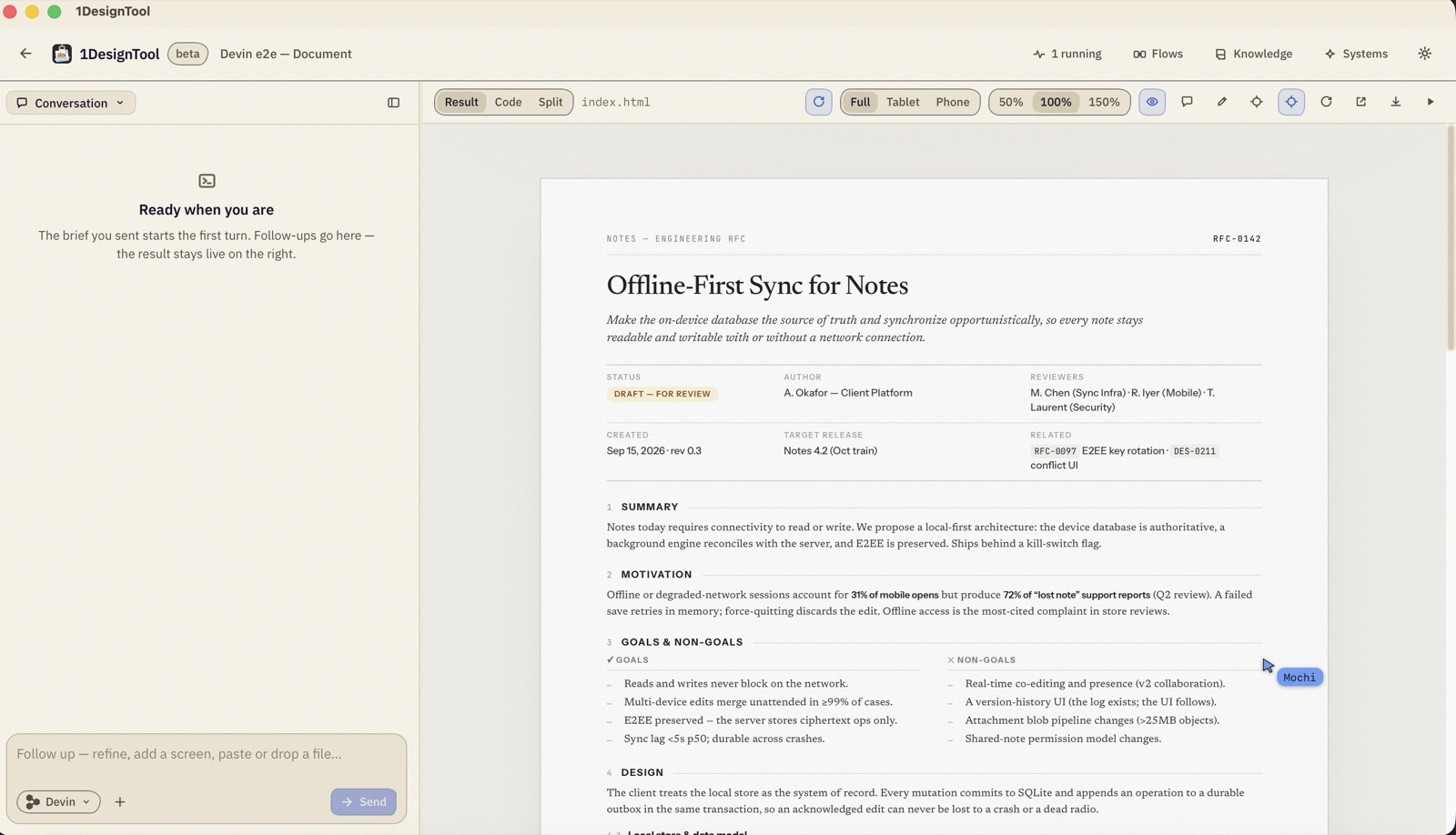
The left pane is not a transcript of the model thinking out loud. Tool calls become readable activity — copying the starter, writing index.html, reading a log, taking a screenshot at 1440×900 — and each file the agent writes lands as a card you can open.
The right pane is the actual output, reloading as files change. The toolbar above it is the part that earns its place:
- Result · Code · Split — the rendered thing, the source, or both.
- Full · Tablet · Phone — the same output at the three widths its checks will be run at.
- 50% · 100% · 150% — zoom, for when the thing is a poster and your screen is not.
There is a comment tool up there too. You can point at a part of the result and leave a note on it, and the note goes back to the agent as the next turn's brief. That is the loop this app is actually about: not prompt, pray, regenerate, but look, point, refine.
What comes out is files
The run in these screenshots was a document — a two-page engineering RFC for adding offline sync to a notes app, produced by Devin from a one-sentence brief.
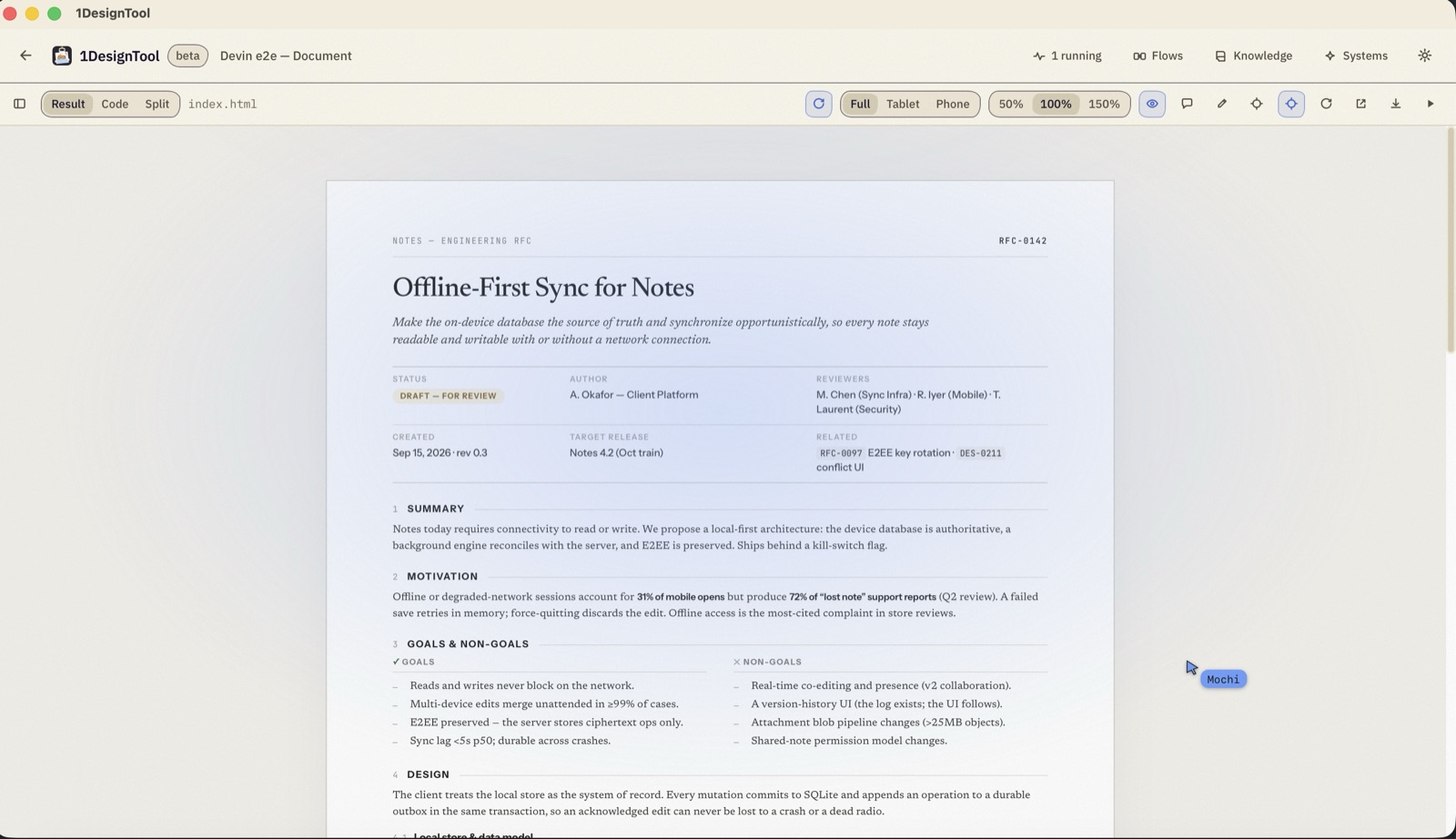
Here is that exact output, live. It is index.html and its stylesheet, nothing else — open the prompt panel under it to see the sentence that produced it:
Document · Devin · e2e · gate PASS
RFC-0142 — A two-page engineering RFC for offline-first sync — status headers, summary table, and numbered design decisions.
▸ the prompt that made it▾ the prompt that made it
“Write a document: a 2-page engineering RFC for adding offline sync to a notes app.”
Note what is not in the picture: no export step, no "download your design", no account. The result pane is rendering a file that already exists on your disk, in a folder you chose, in formats other software can open. A document is HTML and prints to PDF. A 3D object is GLB and OBJ. A wireframe is SVG. An HTML email is inlined tables that survive Outlook.
When a turn ends, the app snapshots the folder. Take the next turn in a direction you end up disliking and you can roll back to the version you had, because "the version you had" is a real thing on a real filesystem and not a row in someone else's database.
The part that decides whether it shipped
One thing has been left out of this walkthrough, and it is the thing that makes the difference between a design tool and a wrapper: before a result reaches that preview pane, it has to pass the design kit's gate. Screenshots at real sizes, contrast pairs, overflow, off-scale sizes, hard-coded colours. Fail and the run gets the failures back and tries again; the failures also accumulate as lessons.
That is its own post — the gate — because a tool that is allowed to tell you no is a strange thing to sell, and worth explaining properly.
Try it against something real
The free tier is a real tier, not a countdown: 300 prompts, 50 watermarked renders, three live versions per project, four variants, three design systems. Pro is a one-time purchase — $29, $59 or $89 for one, three or five machines, with twelve months of updates — and the files you already made stay yours either way, because they were never anywhere else.
The honest test is not "make me a landing page". It is to take the next real piece of work on your list — the RFC nobody wants to format, the settings screen that needs three states drawn, the wireframe for a checkout flow — and give it a folder.