You want to show someone a place before they get there. A café owner wants regulars to see the new seating before it opens. A gym wants a new member to know where the free weights are. A venue wants a band to see the stage from the back of the room. What you usually have is a handful of photos, a PDF floor plan, and maybe a listing link.
Photos show corners, never the whole room, and a floor plan shows the whole room but not what it feels like to stand in it. A real walkthrough has meant a 3D artist, a game engine, or a camera rig and a paid hosting service. And when someone does build one, the first visitor walks into a wall and gets stuck, or falls through the floor by the stairs.
What changed
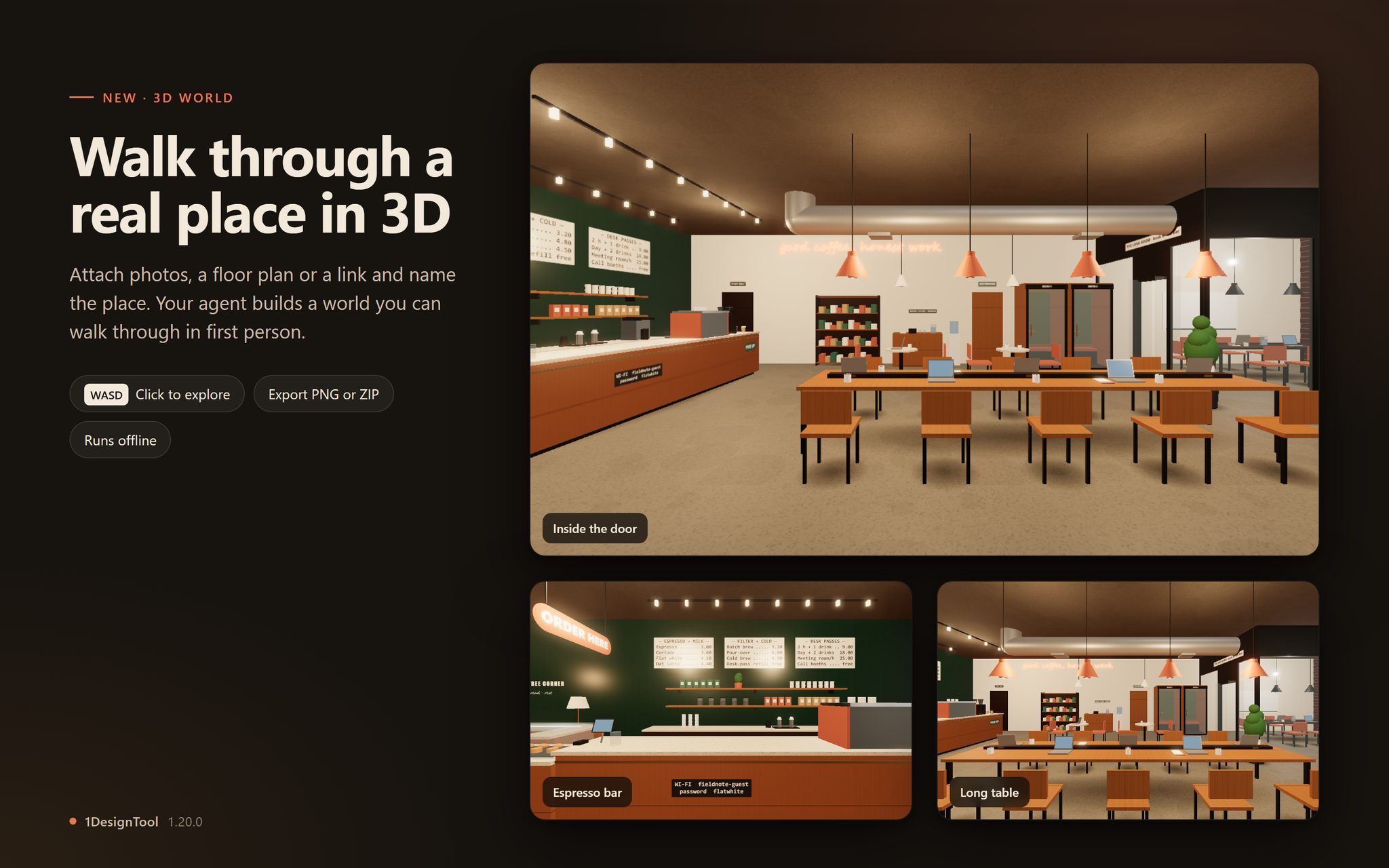
1DesignTool 1.20.0 adds 3D World, a new template on Home. Now you can turn photos, a floor plan or a link into a place you walk through in first person, then step out and walk it as your own character, without opening a game engine.
How it works in practice
Give it what you have
Pick 3D World on Home, attach what you've got and name the place: a shop, a café, a gym, a street, a venue. The agent works from whatever you give it, and is honest about what that was:
- A floor plan or drawing sets the layout: positions, sizes, walls, doors and windows. Photos then decide the materials, colours, signs and fixtures.
- Photos only means the layout is estimated. The agent sets the scale from things of known size, such as a 0.9 m door or 0.6 m floor tiles, and works out what stands where from several views.
- A link or a description gets the typical layout for that kind of place, with every part marked as inferred.
HEIC photos and PDF plans are converted when your machine has a converter, and anything it can't read is listed as a problem rather than dropped. If nothing you sent shows enough of a place to walk, like a logo, a close-up or a dead link, it doesn't invent a building. It tells you what to send instead, such as "two or three wide photos that show the walls".
Signs, logos and floor patterns come from your photos. Text on a wall becomes a sign that stays crisp at any distance, and a logo is cut out of the sharpest frontal photo and straightened.
Click the preview and walk
The world fills in while the agent works: first the shell of rooms, walls and stairs, then the big fixtures like counters and racks, then everything else, then signs, lights and named viewpoints. When it's done, click the preview to explore. Move with WASD or the arrow keys, look with the mouse, hold Shift to run and press Space to jump. Viewpoint buttons and a map take you straight to a spot, like "Inside the door" or "Espresso bar".
On a phone, the start card says Tap to explore and two touch sticks take over: your left thumb moves and your right thumb looks.
Checks walk it before you do
Before a world is called done, its checks play a visitor through the runtime's own physics. They walk to every room and platform from the starting point, run at every wall they can reach to make sure nothing passes through, and make hundreds of runs in every direction to confirm no one can leave the world. Then they render every viewpoint and fail any that comes out blank. They also try the keyboard, the mouse and a phone's touch stick, and check the camera never ends up inside a wall.
So the person you send it to doesn't find the gap behind the counter where you fall out of the building. The checks found it first, and the agent fixed it.
Step out and be in it
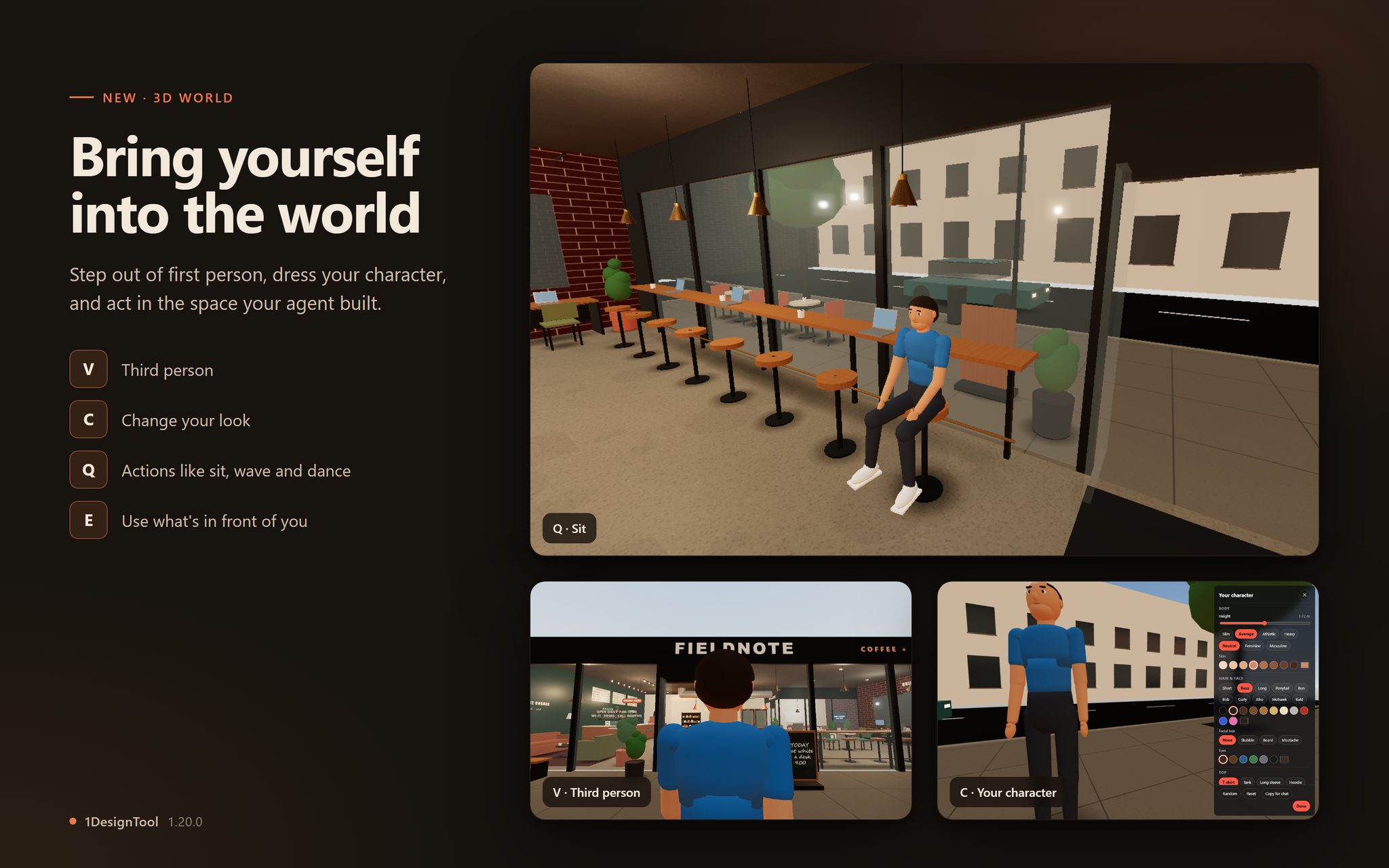
Press V to see yourself in third person, with the camera pulling in when a wall would come between you and your figure. Press C to change your character's look: height, build, skin, hair, face, clothes and accessories. Your look is saved in your browser for that world, and Copy for chat hands it to the agent if you want it to be the default.
Press Q for actions such as sit, wave or dance, and E to use what's in front of you, like sitting down on the bench you're standing at.
Then ask the agent for more. "Let me fly over the building" adds flight on F. "A pool on the terrace I can swim in" adds water you walk into and swim through. The world is one file the agent edits, so each request changes the place, not a copy of it.
Take it with you
Export a PNG screenshot of the view, or a Project ZIP of the whole world. The ZIP holds the page, the world and the 3D library it runs on, and makes no network requests, so it opens offline on any machine with a browser.
Start from a free 3D library model
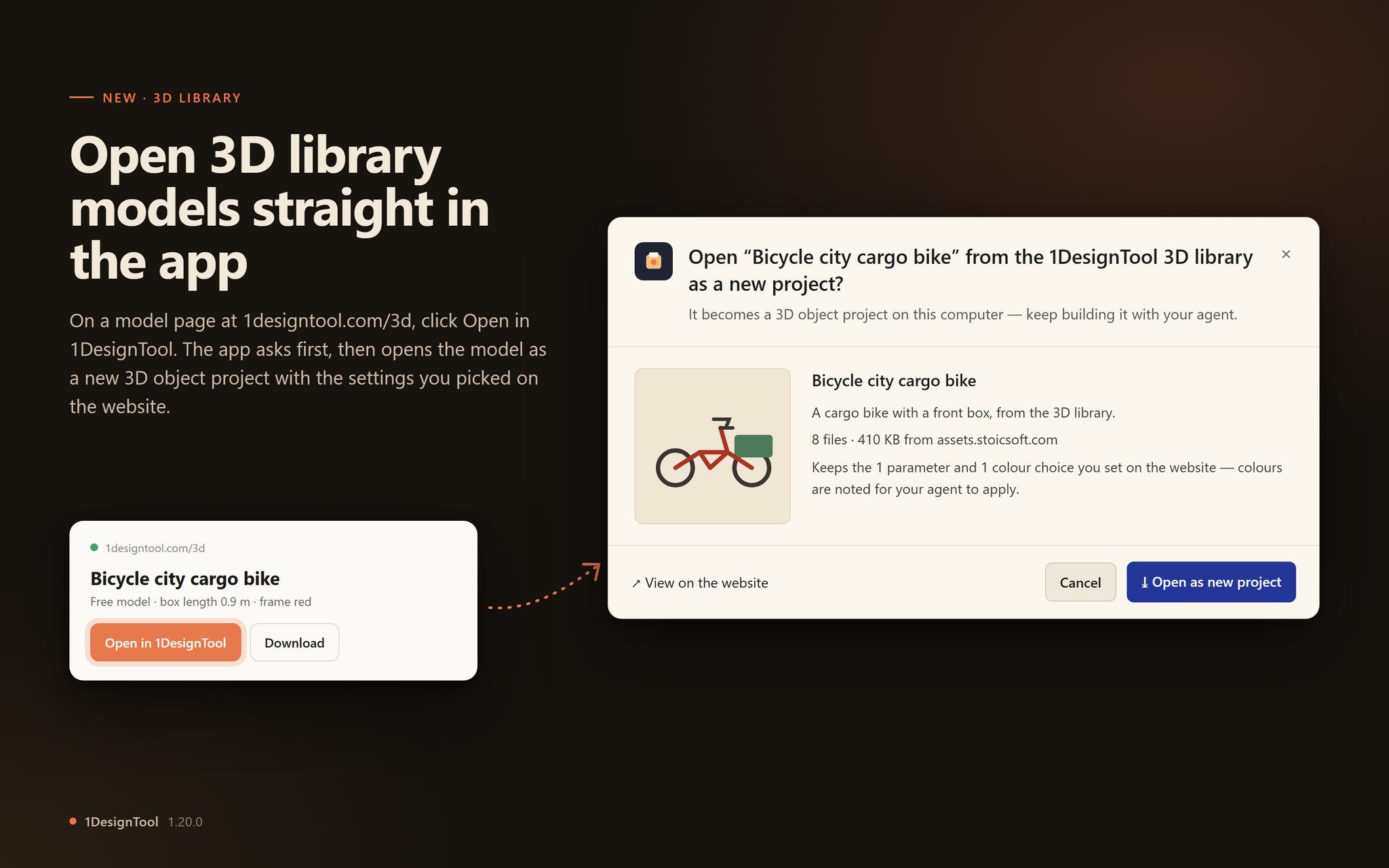
1.20 also connects the app to the free 3D library at 1designtool.com/3d. On a model page, set the options you want, then click Open in 1DesignTool. The app asks first, showing the model, how many files it will download and from where, and which of your website settings it keeps. Click Open as new project and the model becomes a 3D object project on your computer, ready for you to keep building with your agent. Cancel adds nothing.
Before vs after
| Before 1.20 | With 1.20 | |
|---|---|---|
| Showing someone a place | A folder of photos and a PDF plan | A world they walk through in first person |
| Getting a walkthrough built | A 3D artist or a game engine | Attach photos, a plan or a link on Home |
| Getting stuck in a wall | Found by the first visitor | Found by the checks, which run at every wall |
| Seeing it on a phone | A separate viewer, or nothing | Touch sticks in the same world |
| Being in the space | A floating camera | Your own character that sits, waves and dances |
| Sharing it | Hosting and an account | A ZIP that runs offline |
| A model from the 3D library | Download the files, start a project, copy them in | Open in 1DesignTool, then Open as new project |
Who benefits most
People who run a physical place. A café, a shop, a gym or a studio can show the space to people who haven't been yet, built from the photos already on the phone.
People planning a space that doesn't exist yet. Give it the floor plan for a fit-out or a venue layout and walk the result before anything is built. The layout follows the plan, and everything the agent had to guess is marked as inferred.
Designers and makers who use the 3D library. A model you've configured on the website is one click from a project you can keep changing, instead of a download you have to set up by hand.
Try it
Update to 1DesignTool 1.20.0, pick 3D World on Home, and attach three photos of a room you know well. When it's done, click the preview, press V, and walk in as yourself.